Description
This guide shows how to create and schedule a Mikrotik script to automatically send backup files to an email address.
🎥 Video Tutorial
⚙️ Prerequisites
- Already connected to your Mikrotik router via Winbox.
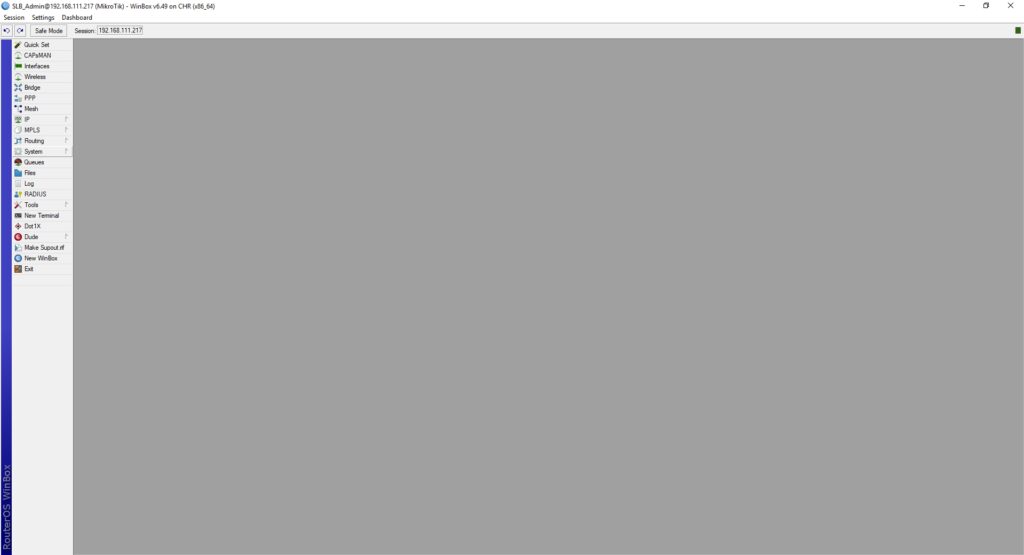
Step 1: Create a New Script
-
Go to
System→Scripts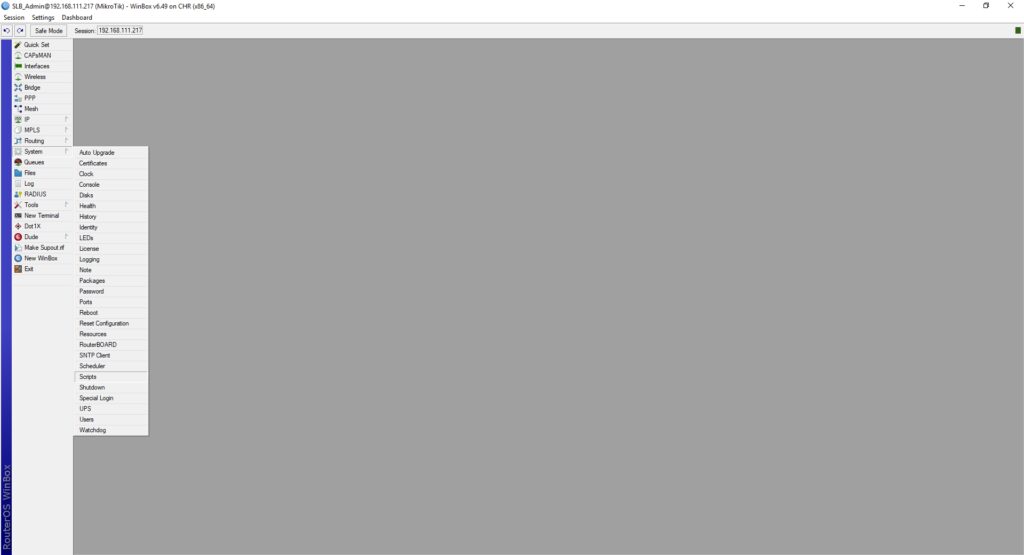
-
Press Add (+) to create a new script.
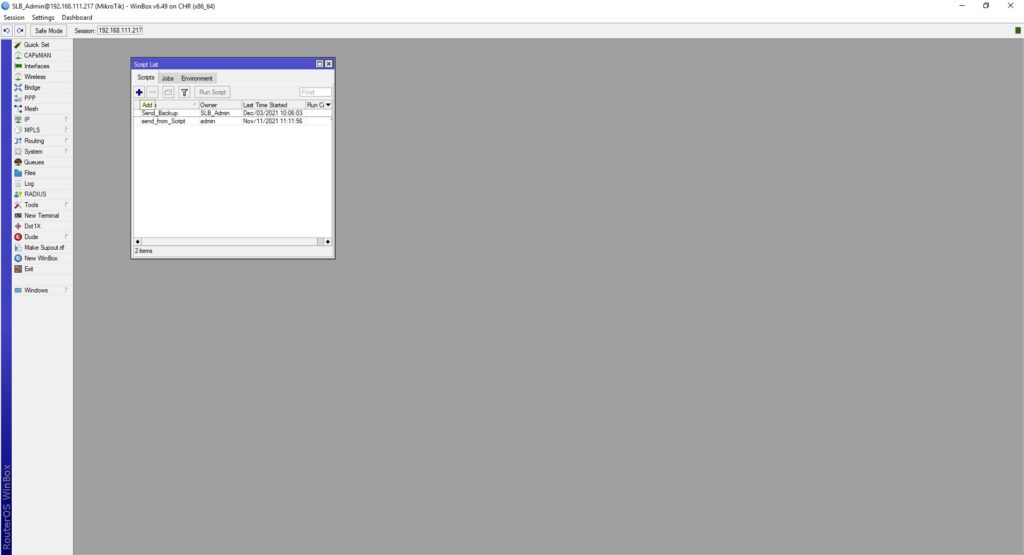
-
Fill in:
- Name:
AutoBackupToEmail - Policy: Allow all required permissions.
- Source: Paste the script below.
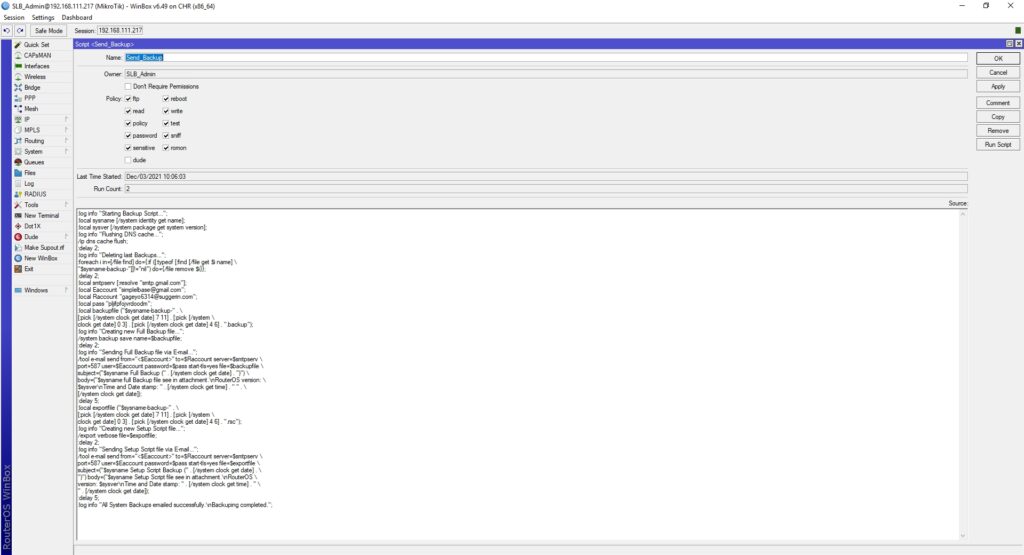
- Name:
🔤 Backup Script
:log info "Starting Backup Script...";

:local sysname [/system identity get name];
:local sysver [/system package get system version];

:log info "Flushing DNS cache...";
/ip dns cache flush;
:delay 2;

:log info "Deleting last Backups...";
:foreach i in=[/file find] do={
    :if ([:typeof [:find [/file get $i name] "$sysname-backup-"]]!="nil") do={
        /file remove $i
    }
};
:delay 2;

:local smtpserv [:resolve "smtp.gmail.com"];
:local Raccount "gageyo6314@suggerin.com";
:local Eaccount "simplelbase@gmail.com";
:local pass "pljifpfojvrdoodm";

:local backupfile ("$sysname-backup-" . [:pick [/system clock get date] 7 11] . [:pick [/system clock get date] 0 3] . [:pick [/system clock get date] 4 6] . ".backup");

:log info "Creating new Full Backup file...";
/system backup save name=$backupfile;
:delay 2;

:log info "Sending Full Backup file via E-mail...";
/tool e-mail send from="<$Eaccount>" to=$Raccount server=$smtpserv port=587 user=$Eaccount password=$pass start-tls=yes file=$backupfile subject=("$sysname Full Backup (" . [/system clock get date] . ")") body=("$sysname full Backup file see in attachment.\nRouterOS version: $sysver\nTime and Date stamp: " . [/system clock get time] . " " . [/system clock get date]);
:delay 5;

:local exportfile ("$sysname-backup-" . [:pick [/system clock get date] 7 11] . [:pick [/system clock get date] 0 3] . [:pick [/system clock get date] 4 6] . ".rsc");

:log info "Creating new Setup Script file...";
/export verbose file=$exportfile;
:delay 2;

:log info "Sending Setup Script file via E-mail...";
/tool e-mail send from="<$Eaccount>" to=$Raccount server=$smtpserv port=587 user=$Eaccount password=$pass start-tls=yes file=$exportfile subject=("$sysname Setup Script Backup (" . [/system clock get date] . ")") body=("$sysname Setup Script file see in attachment.\nRouterOS version: $sysver\nTime and Date stamp: " . [/system clock get time] . " " . [/system clock get date]);
:delay 5;

:log info "All System Backups emailed successfully.\nBackuping completed.";
⚠️ Important: Replace email addresses and passwords with your actual credentials. Use App Passwords if using Gmail.
Step 2: Schedule the Script
- Go to
System→Scheduler -
Press Add (+) and fill in:
-
Name:
AutoBackupToEmail - Start Time:
00:00:00(or your preferred time) - Interval:
1d 00:00:00(daily) or your preferred interval - On Event:
system script run AutoBackupToEmail
✅ Conclusion
With this script scheduled, your Mikrotik router will:
- Remove previous backups.
- Generate new
.backupand.rscfiles. - Email both files automatically to your inbox.