This guide shows a simple method to set up a PPTP (VPN) server on a Mikrotik router using Winbox. This setup allows only one client to connect to the server.
🎥 Video Tutorial
🖥 Step 1: Connect via Winbox
Open Winbox and connect to your Mikrotik router.

✅ Step 2: Enable the PPTP Server
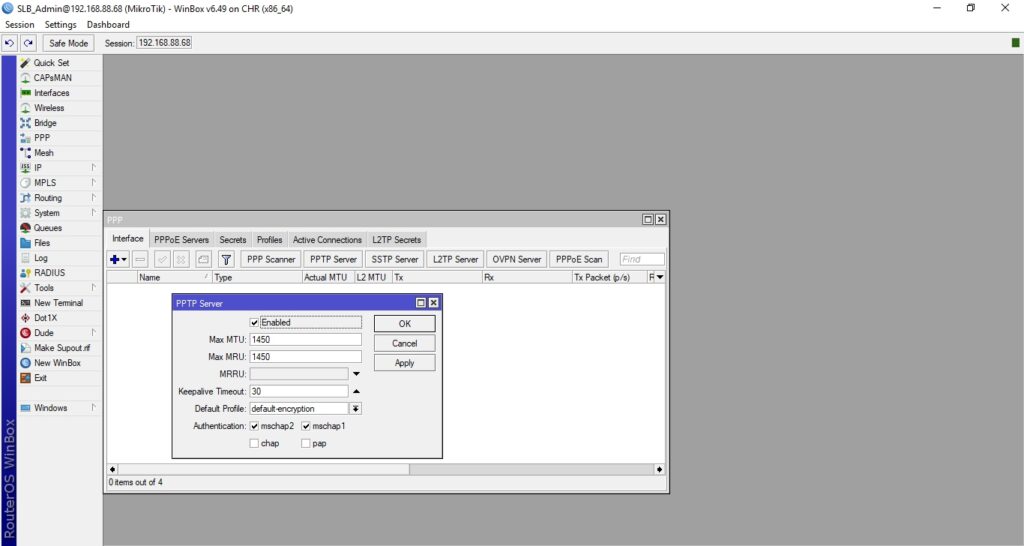
- Go to PPP > PPTP Server.
- Check the Enabled ✅ box.
👤 Step 3: Add User Credentials
- Navigate to PPP > Secrets.
- Click Add ➕ and fill in the following fields:
- 👤 Name:
USERNAME - 🔑 Password:
PASSWORD - 🔧 Service:
pptp - 📍 Local Address: Internal IP of the router (e.g.,
192.168.88.1) - 🌐 Remote Address: IP to assign to the client (e.g.,
192.168.88.2)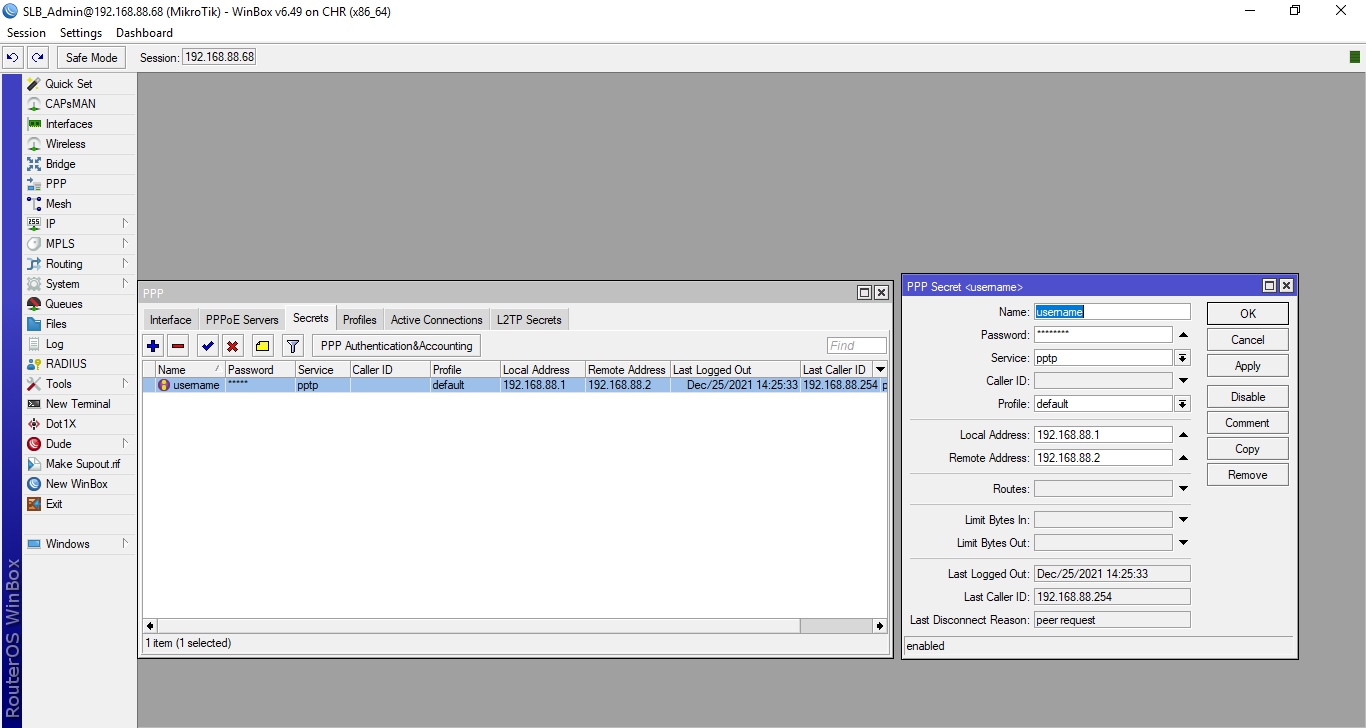
- 👤 Name:
- Click OK ✅.
🔐 Step 4: Allow PPTP Through Firewall
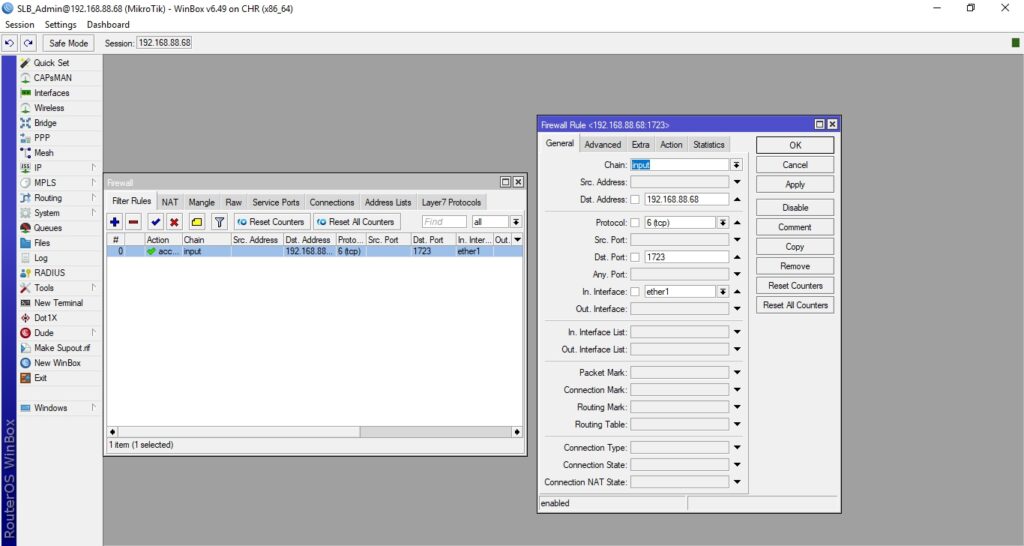
- Open IP > Firewall 🔥.
- Go to the Filter Rules tab and click Add ➕.
- Set the following parameters:
- 🔁 Chain:
input - 📥 Dst. Address: External IP of the router
- 📡 Protocol:
tcp - 📌 Dst. Port:
1723 - 🖧 In. Interface: WAN port (e.g.,
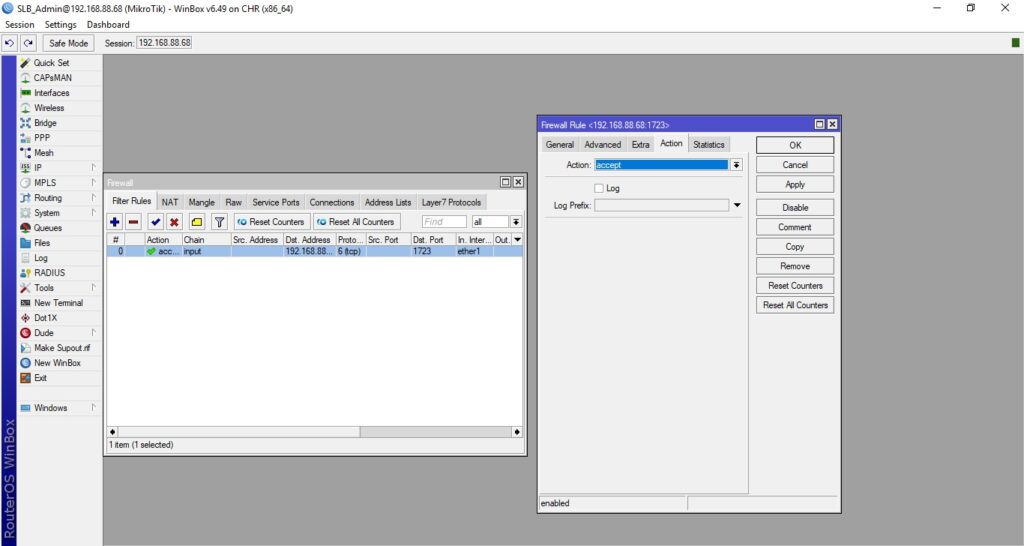
ether1-gateway) - ✅ Action:
accept
- 🔁 Chain:
- Click OK ✅.
This completes the basic configuration. 🎉
🧪 Step 5: Connect from a Windows 10 Client
- Open Settings ⚙️ > Network & Internet 🌐 > VPN 🔐.
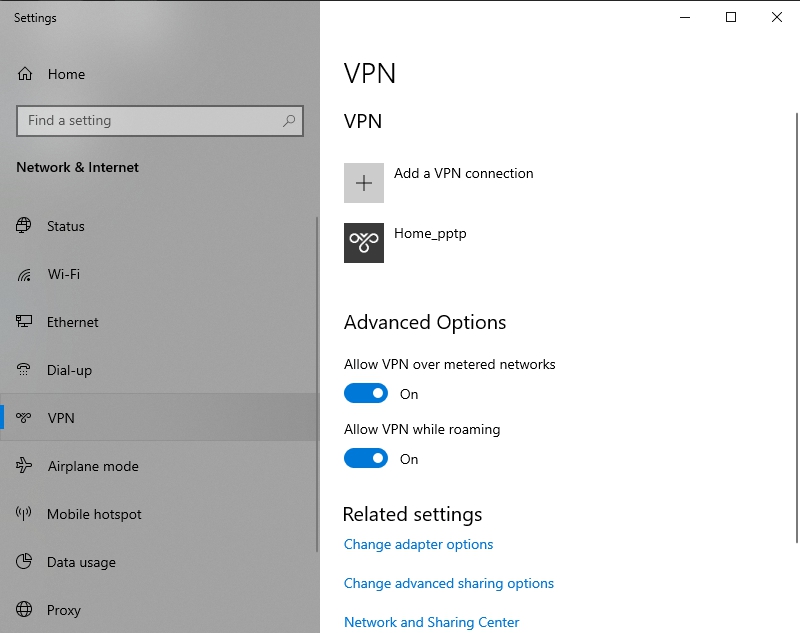
- Click Add a VPN connection ➕.
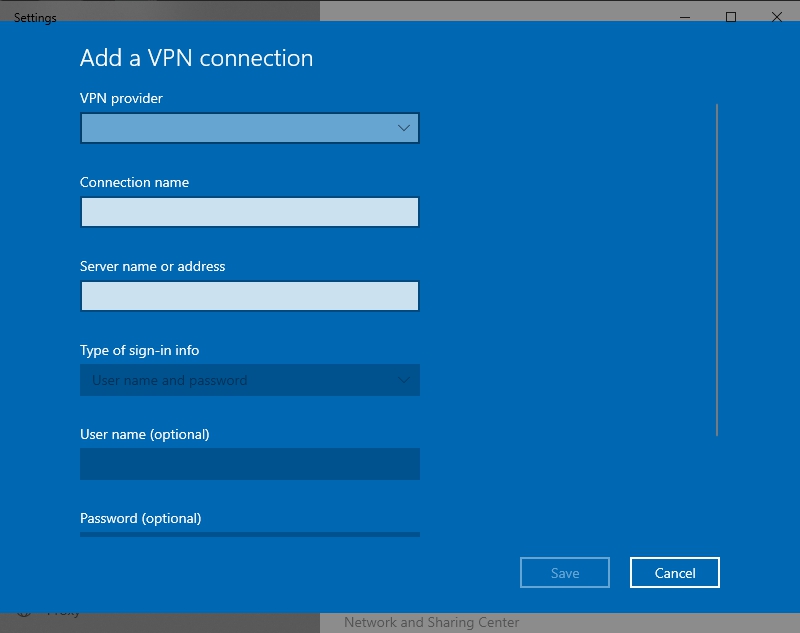
- Fill in the requested fields using the credentials and IP from previous steps.
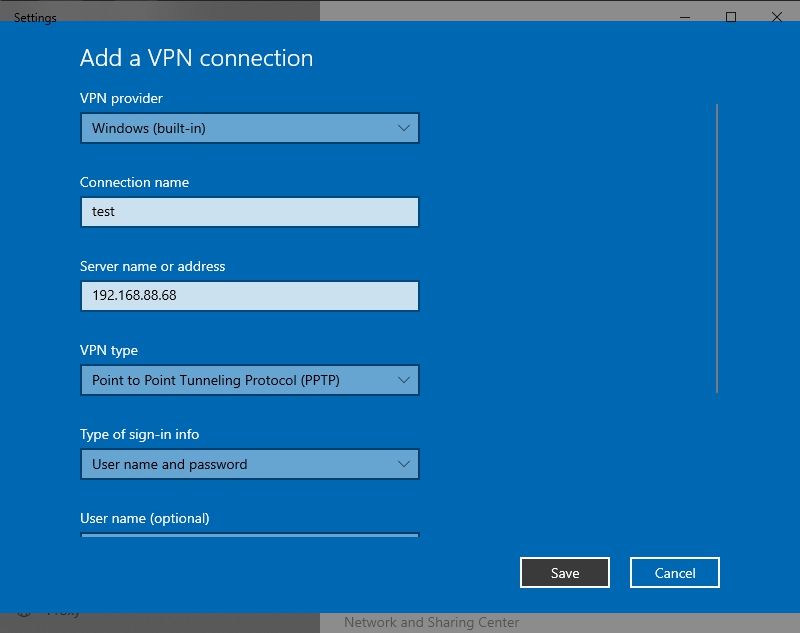
- Save the configuration and click Connect 🔗.
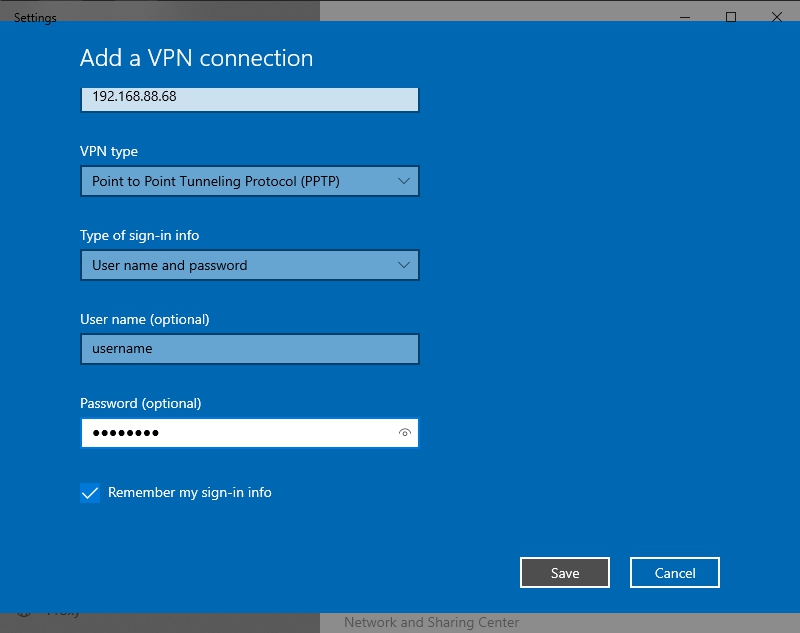
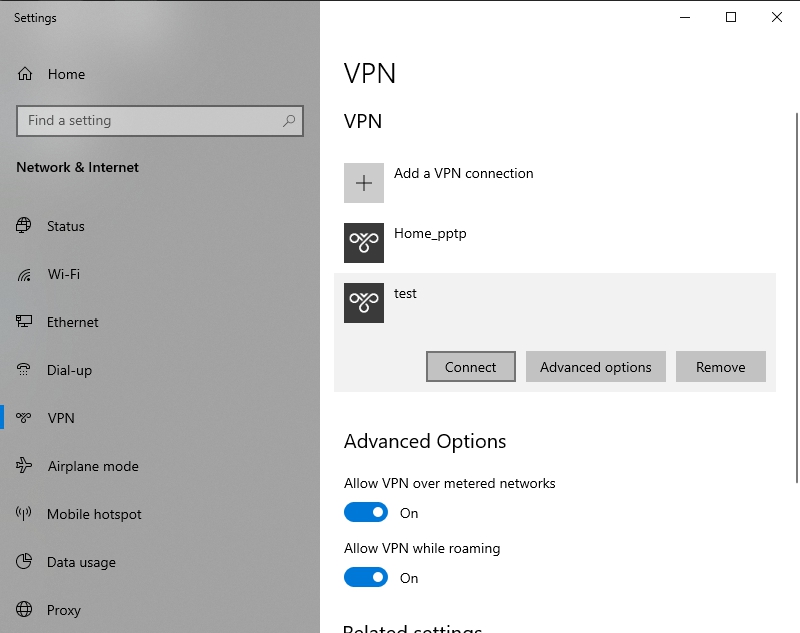
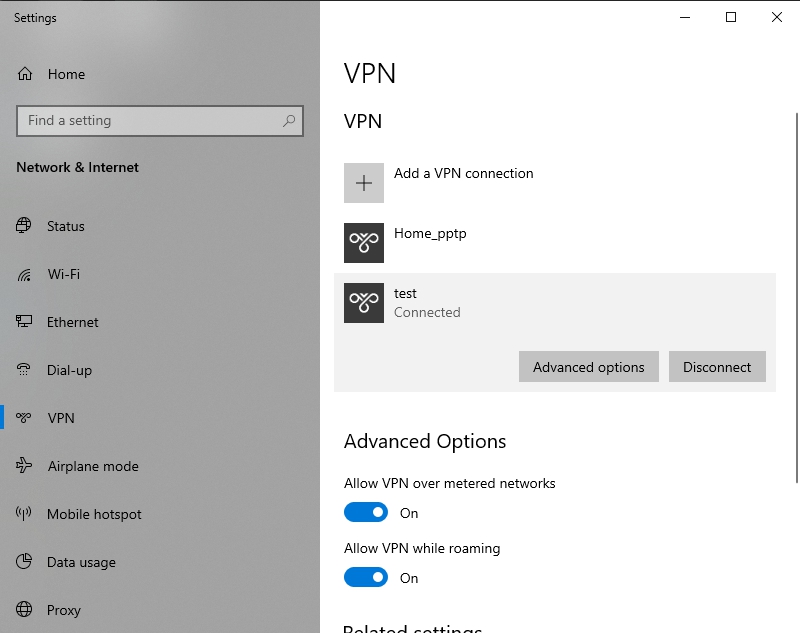 If everything is set up correctly, your Windows 10 client will connect to the Mikrotik PPTP VPN server. ✅