Description
Mikrotik routers include a built-in service called Netwatch, which can monitor the availability of a remote host. You can configure it to send email alerts via the router’s built-in email client when the host goes OFFLINE or comes back ONLINE.
🎥 Video Tutorial
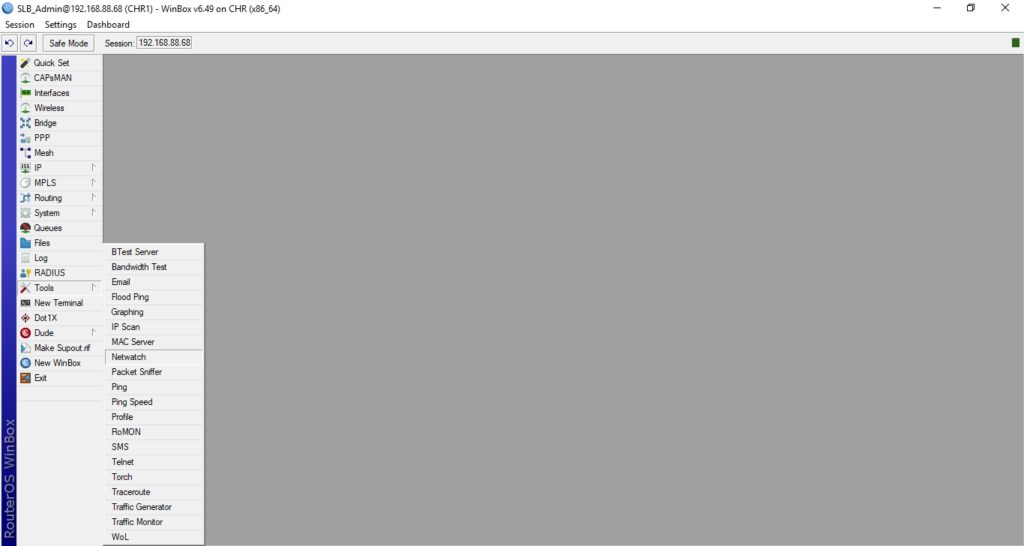
🧰 Step 1: Open Netwatch
- Connect via Winbox.
- Navigate to Tools > Netwatch.
➕ Step 2: Add a New Netwatch Host
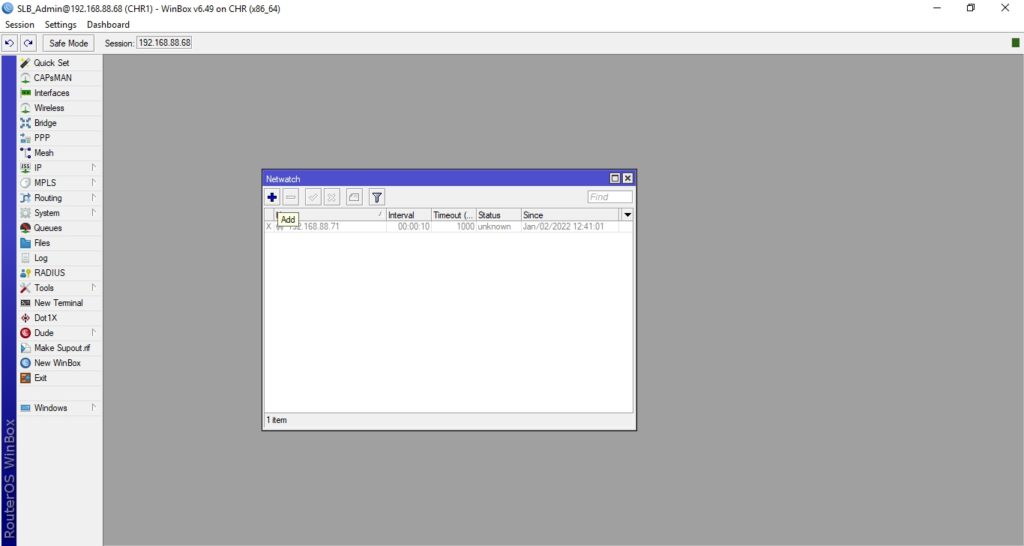
- Click Add ➕ to create a new host entry.
- Fill in the fields:
- 📍 Host: IP address of the device to monitor
- ⏱ Interval: How often the host should be checked (e.g.,
00:01:00) - ⌛ Timeout: Maximum wait time before considering the host down (e.g.,
1000 ms)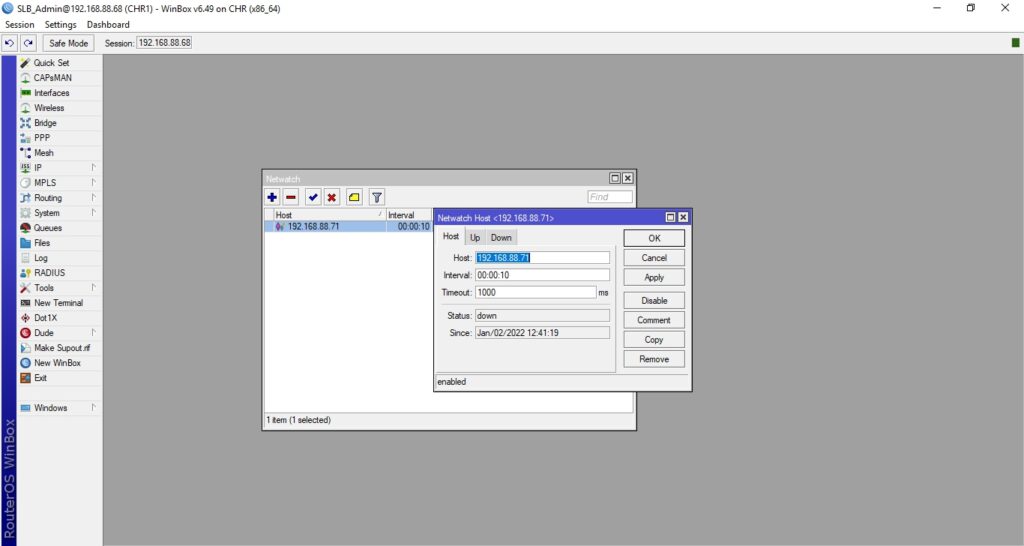
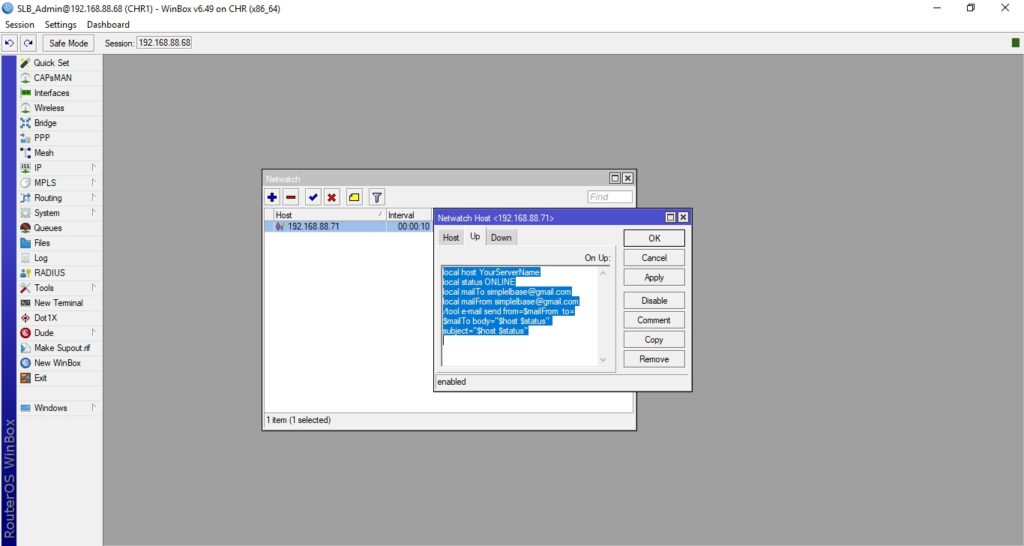
📧 Step 3: Script to Send Email When Host is UP (ONLINE)
Paste the following in the Up Script section:
:local host "YourServerName"
:local status "ONLINE"
:local mailTo "simplelbase@gmail.com"
:local mailFrom "simplelbase@gmail.com"
/tool e-mail send from=$mailFrom to=$mailTo subject=($host . " " . $status) body=($host . " " . $status)
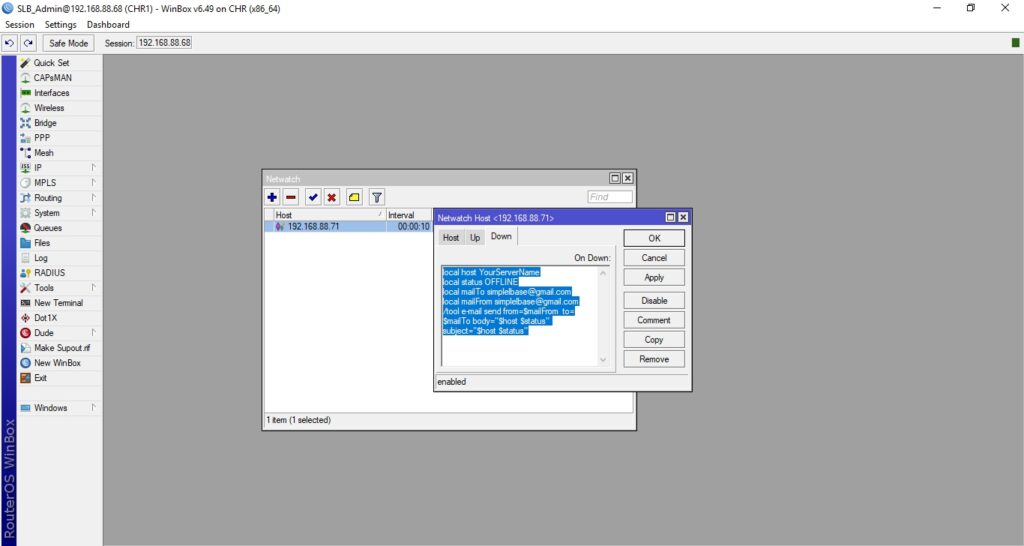
📧 Step 4: Script to Send Email When Host is DOWN (OFFLINE)
Paste the following in the Down Script section:
:local host "YourServerName"
:local status "OFFLINE"
:local mailTo "simplelbase@gmail.com"
:local mailFrom "simplelbase@gmail.com"
/tool e-mail send from=$mailFrom to=$mailTo subject=($host . " " . $status) body=($host . " " . $status)
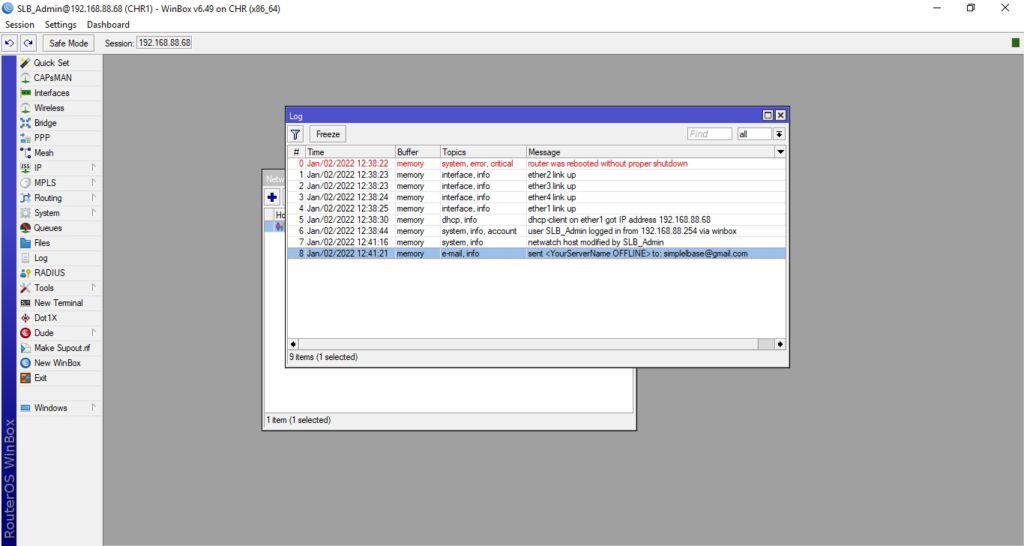
🧾 Step 5: Check Log for Sent Emails
You can verify that emails are being sent by checking the Log on your Mikrotik router.
✅ Now your router will notify you via email whenever the monitored host goes OFFLINE or comes ONLINE again!