⚙️ Duino Coin Mining on Nokia 3 Android Phone 📱
In this post, I show how to mine Duino Coin directly on a Nokia 3 Android phone using UserLand to run Ubuntu 🐧.
It’s a simple experiment to see how much performance you can get from a basic smartphone CPU ⚙️📲
🎥 Video Tutorial
🧰 Step-by-Step Setup
- ⚙️ Enable Developer Mode
Go to Settings → About phone
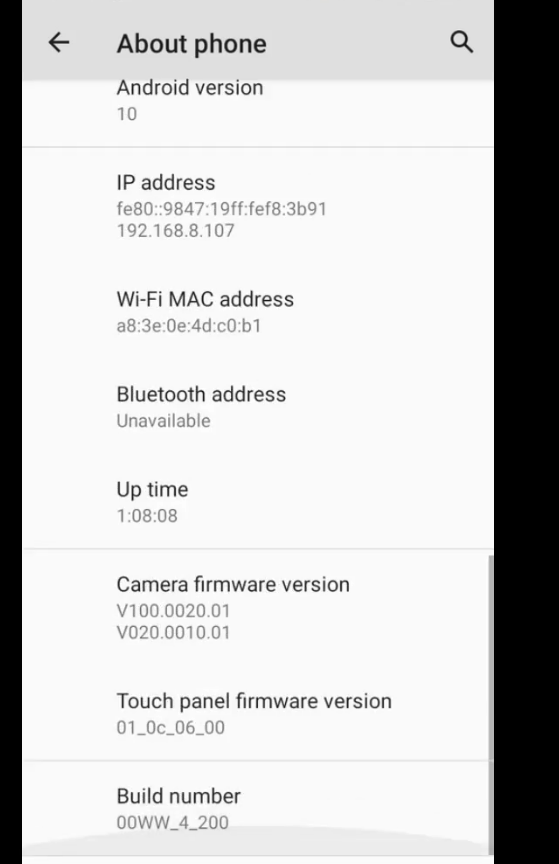 Tap Build number seven times to unlock Developer options
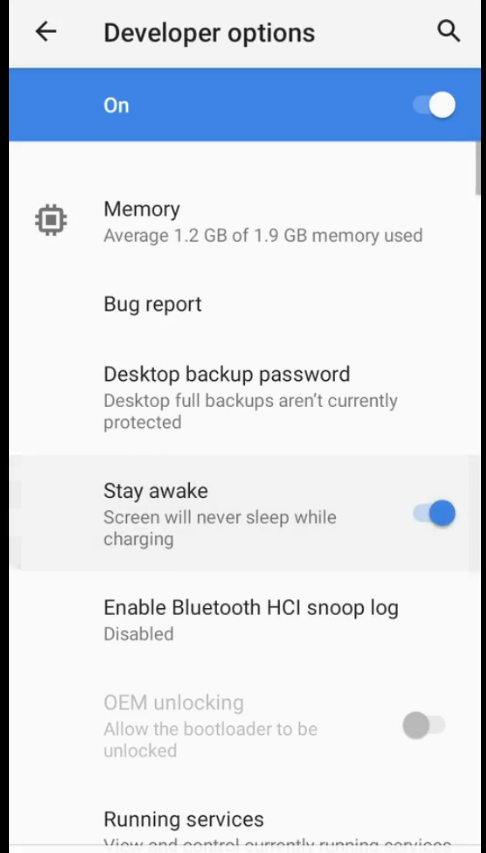
 - 🔋 Enable "Stay Awake"
In Developer options, enable Stay awake while charging to prevent sleep mode during mining
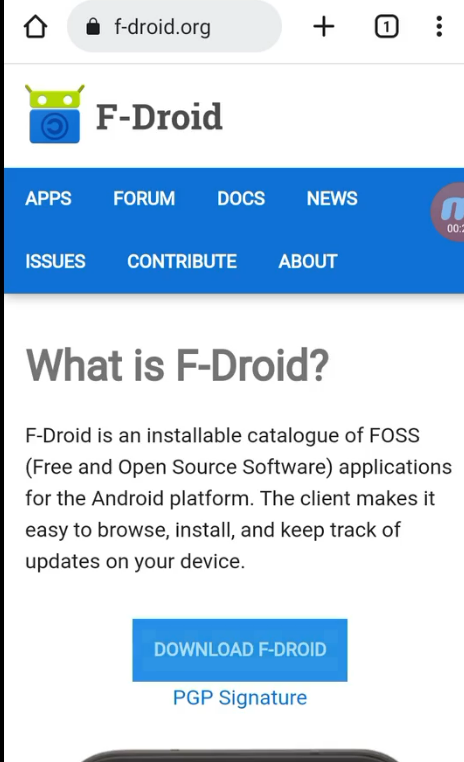
- 🛍️ Install F-Droid
- Search for F-Droid in Google or visit f-droid.org
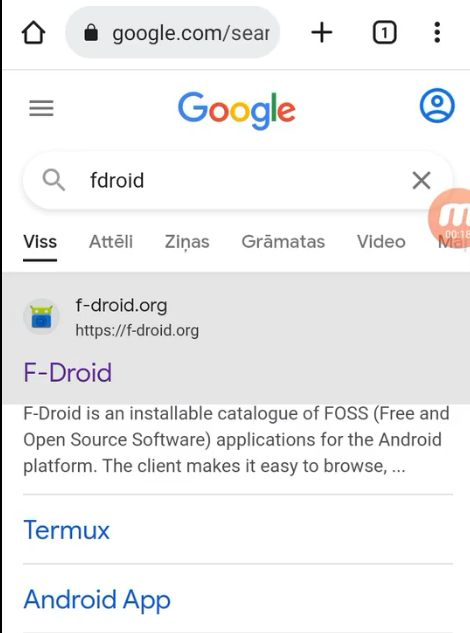
- Download and install the F-Droid app
- 🧩 Install UserLand
- Open F-Droid
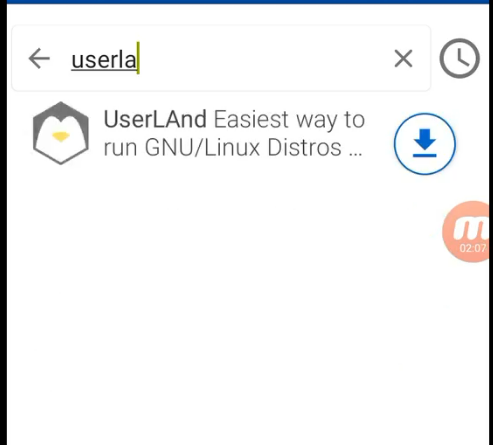
- Search for and install the UserLand app
- 🐧 Launch Ubuntu in UserLand
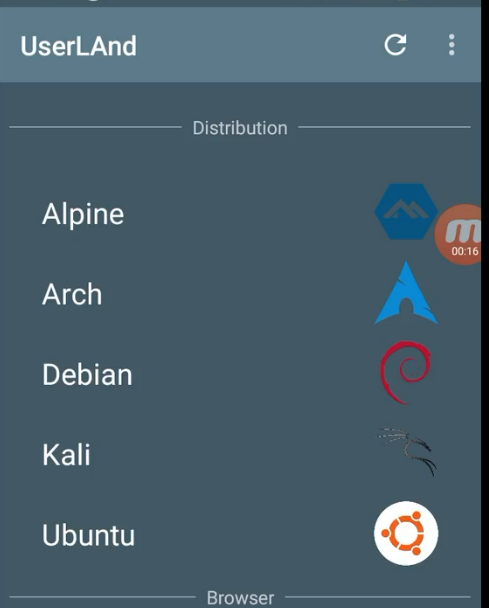
- Run UserLand and choose Ubuntu
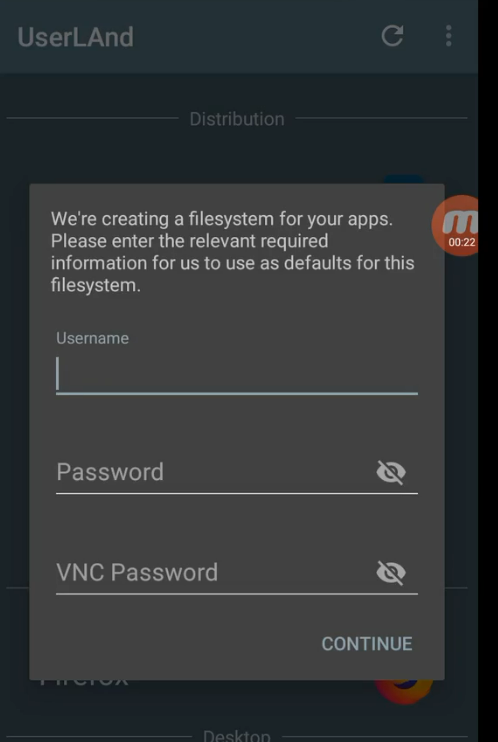
- Set:
- Username 👤
- Password 🔑
- VNC password (for graphical access)
-
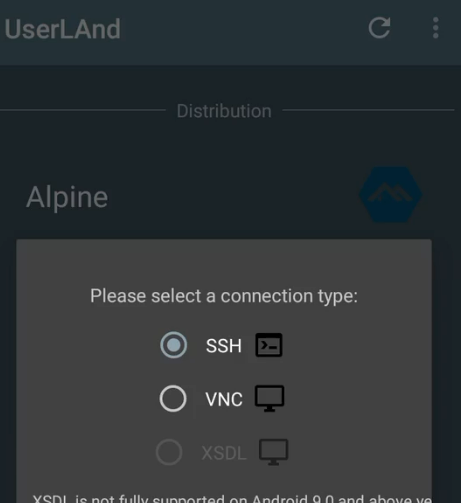
On the next screen, select SSH for terminal mode
-
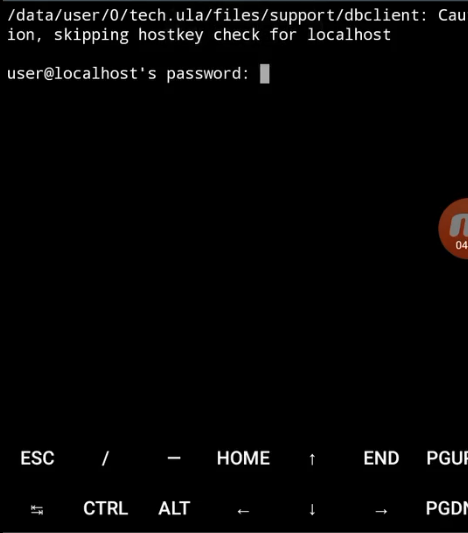
🔑 Login
- When the virtual machine starts, enter your defined password
🧱 Installing the Miner
- 🔄 Update repositories:
apt update
 8. ⬆️ Upgrade system packages:
sudo apt upgrade
 9. ⚙️ Install required dependencies:
sudo apt install git python3 python3-pip python3-dev
 10. 📥 Clone the Duino Coin miner:
<pre>git clone https://github.com/revoxhere/duino-coin.git</pre>
 11. 📂 Enter the miner directory:
<pre>cd duino-coin</pre>
 12. ▶️ Run the miner:
<pre>python3 PC_Miner.py</pre>

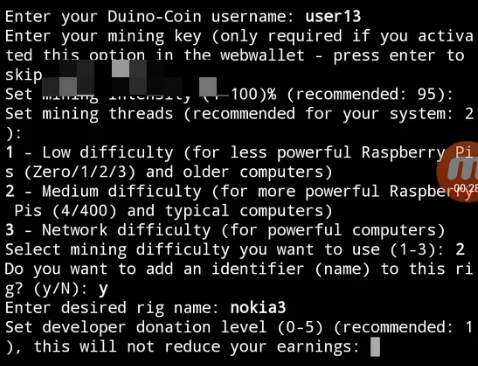
🧾 Miner Configuration
When prompted, enter:
- 👤 Username (Duino Coin wallet)
- 🔑 Mining key
- ⚙️ Intensity level
- 🧵 Number of threads
- 🎯 Difficulty
- 🏷️ Rig name
- 💰 Donation level
⚡ Performance Result
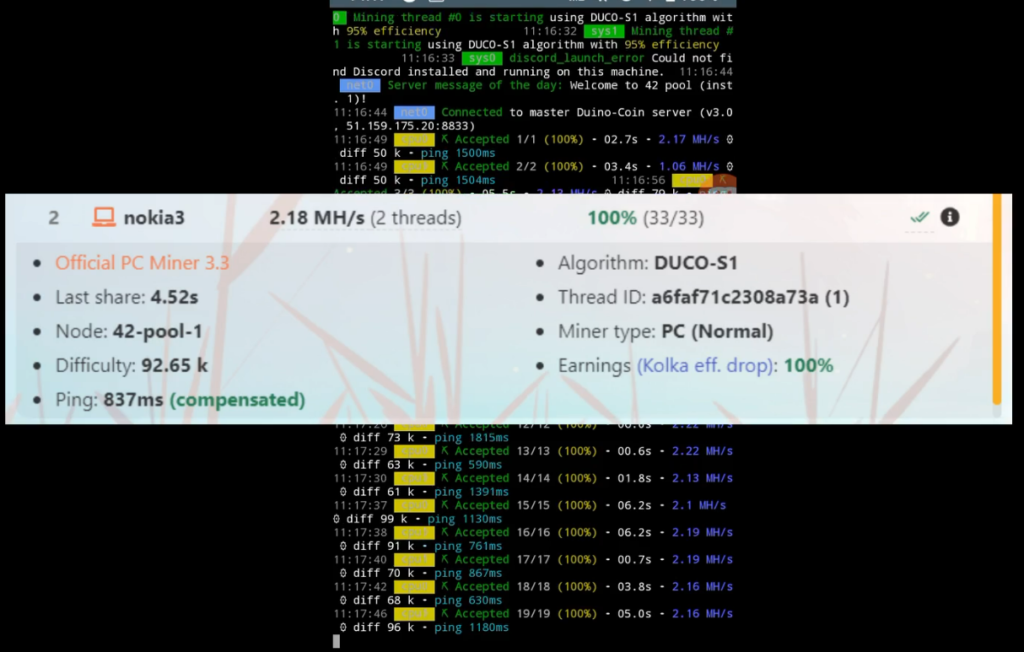
🚀 Average mining speed: ~2.18 MH/s ⚡🔥
💡 Not high, but impressive for a basic Android phone running Ubuntu in a virtualized environment!