🎥 Video Tutorial
Today I’m building a small & simple home NAS for multimedia 🎥🎶
💡 Hardware used:
- 💽 Old IDE HDD in USB enclosure
- 🍊 Orange Pi Zero (cheap SBC from AliExpress)
🧠 OS choice:
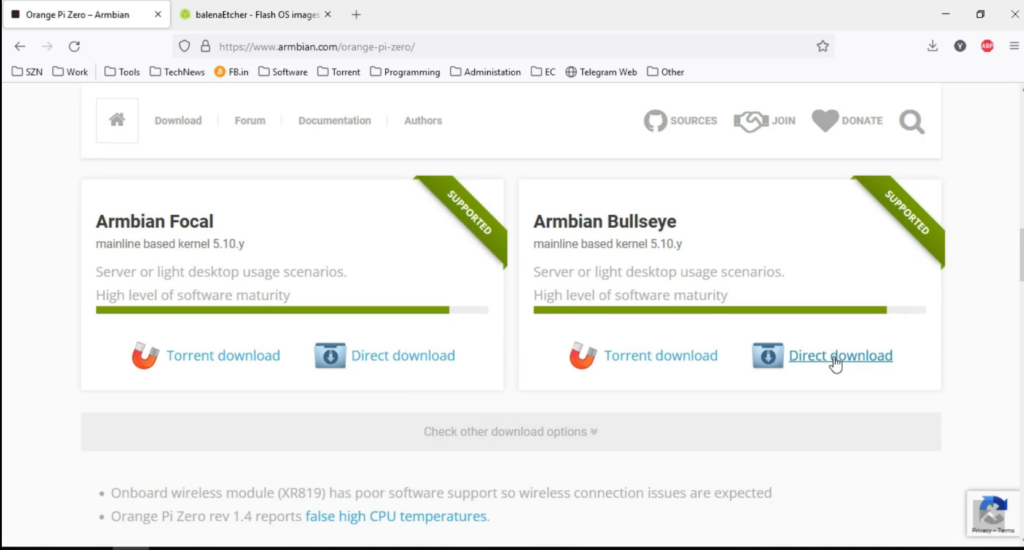
- 🐧 Armbian — lightweight and perfect for Orange Pi
⬇️ Download OS from: armbian.com
💾 Flash OS to SD card
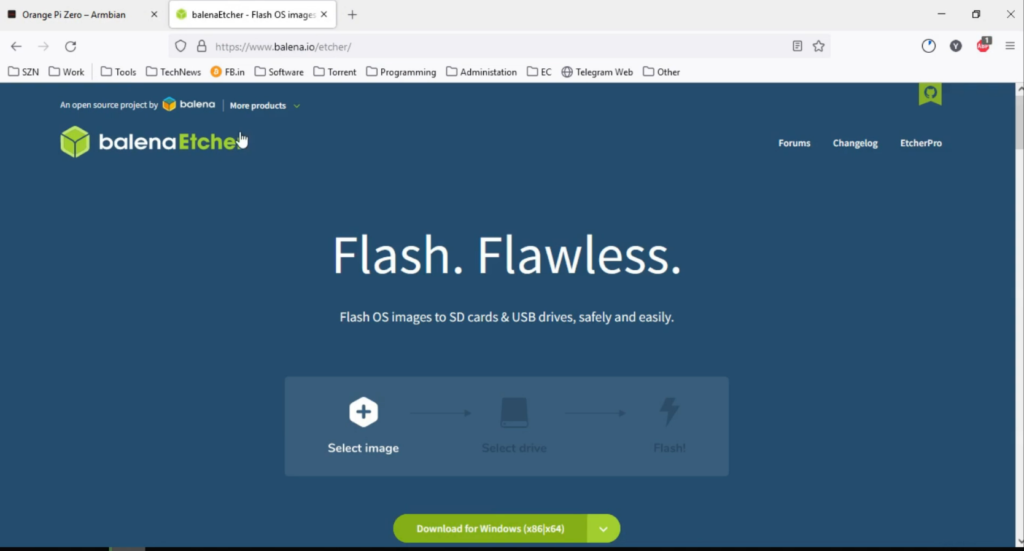
I used balenaEtcher 🔥 (balena.io)
 Steps:
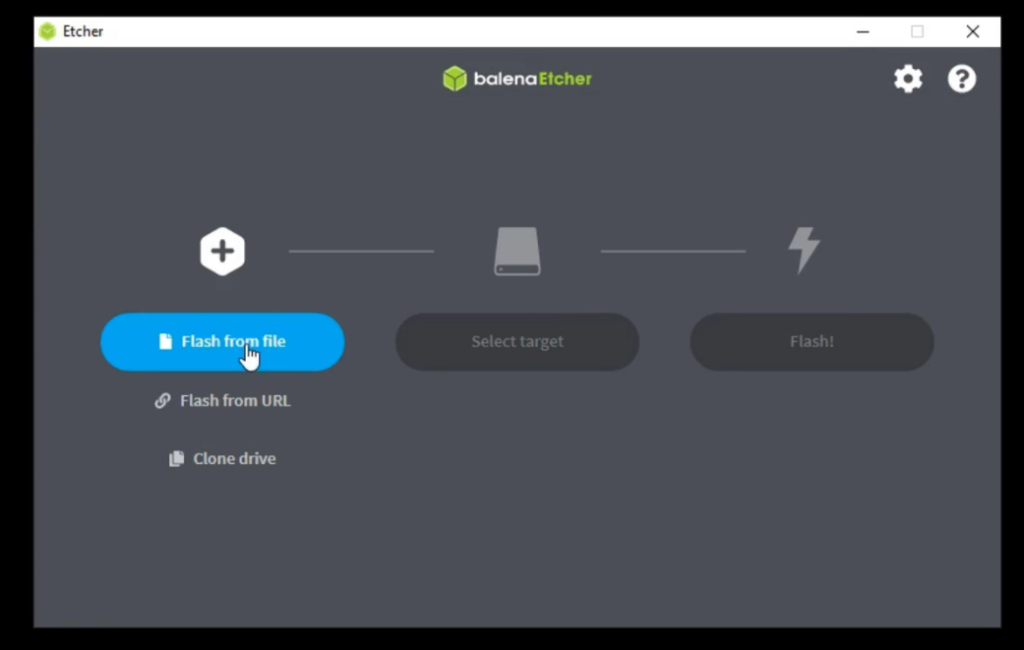
- ▶️ Run balenaEtcher
- 📂 Click Flash from file → select OS image
- 💿 Click Select target → choose SD card
- ⚡ Press Flash! and wait
🔌 First boot & connection
- Insert SD card into 🍊 Orange Pi
-
Connect:
-
🔌 Power
- 🌐 Ethernet
- 💽 HDD
📡 Find IP via router DHCP table (or use UART if you’re hardcore 😎)
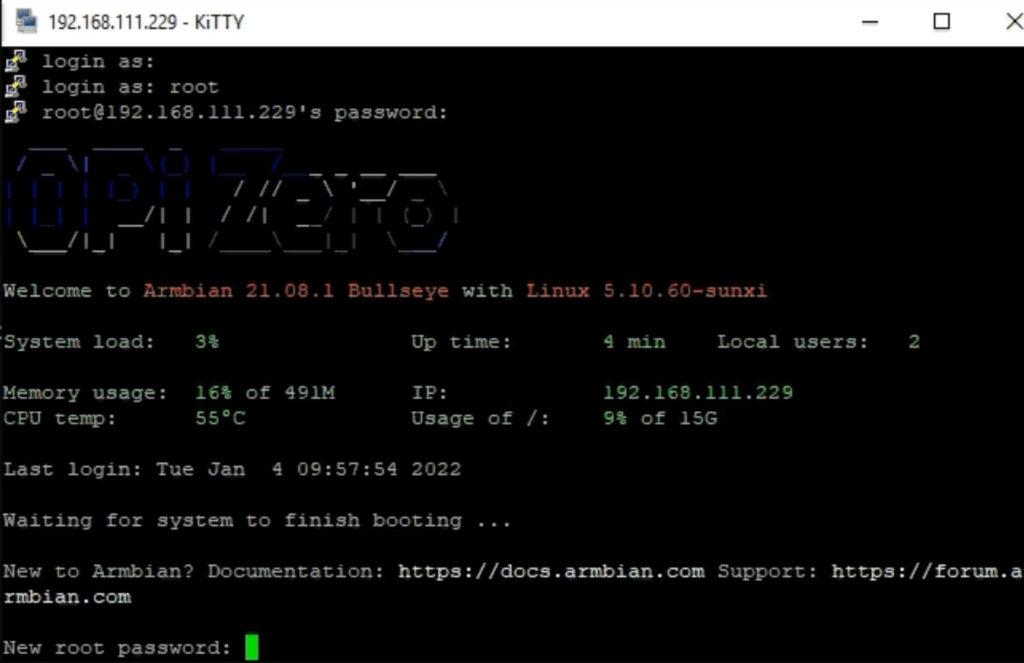
🔑 Connect via SSH (PuTTY):
- user:
root - pass:
1234
⚠️ Change password when prompted
💿 Move system to HDD
Run:
nand-sata-install

Options:
- Boot from SD 💾
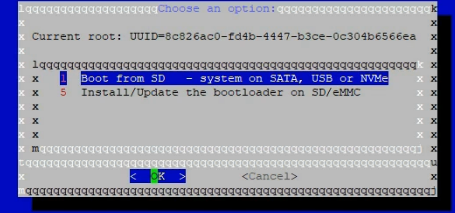
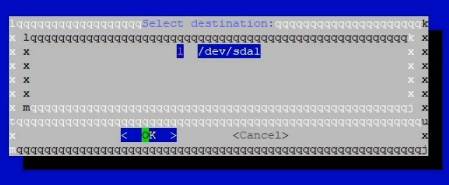
- Select HDD 💽
- Filesystem: ext4
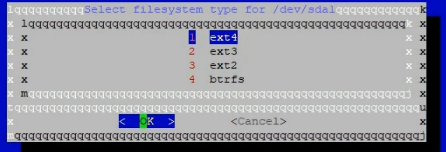
🔄 Reboot after install
📁 Create storage folder
cd /
mkdir Storage
chmod 777 Storage
ls -la
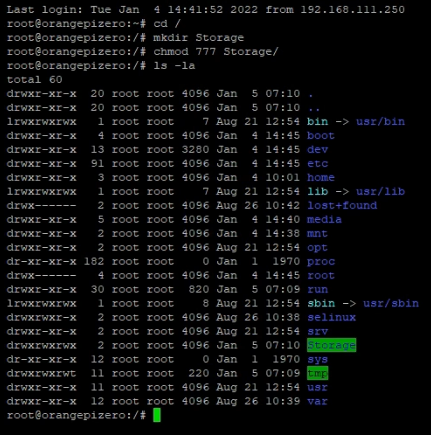
✅ Now /Storage accessed for everyone (read/write)
🌊 Install Transmission (torrent client)
sudo apt install transmission-daemon

⛔ Stop service before config:
systemctl stop transmission-daemon

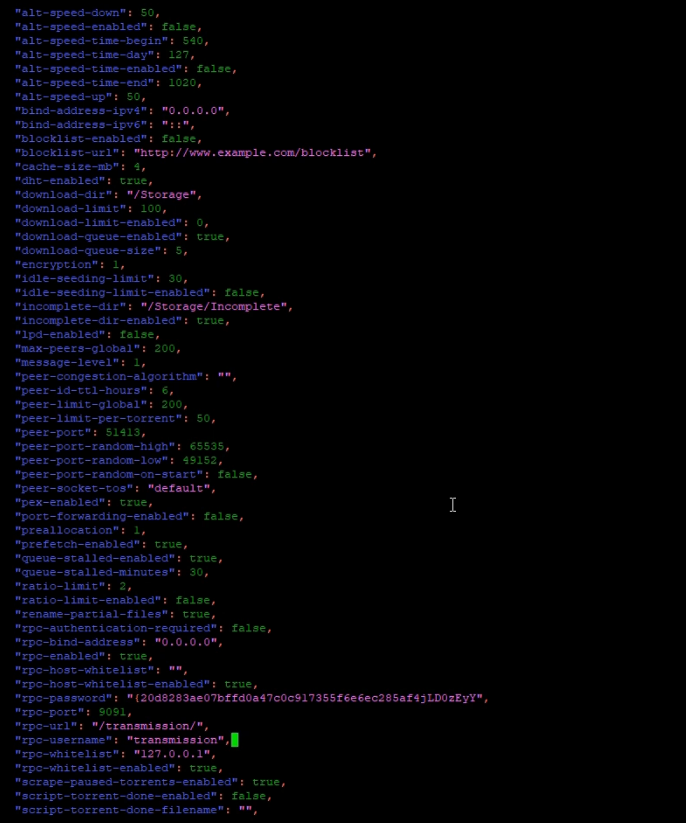
✏️ Edit config:
nano /etc/transmission-daemon/settings.json

Change:
"download-dir": "/Storage",
"incomplete-dir": "/Storage/Incomplete",
"incomplete-dir-enabled": true,
"rpc-authentication-required": false,
"rpc-bind-address": "0.0.0.0",
"rpc-whitelist-enabled": false
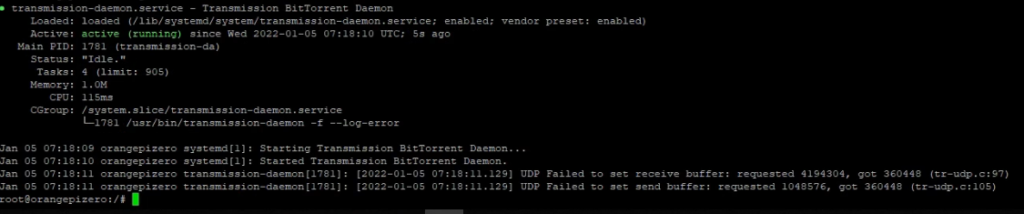
▶️ Start again:
systemctl start transmission-daemon

systemctl status transmission-daemon
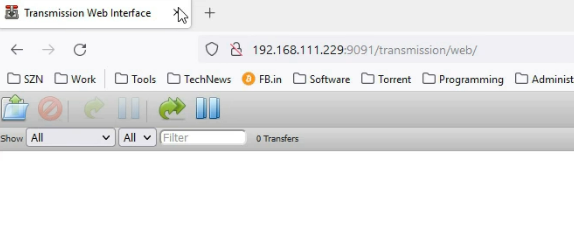
🌐 Web UI:
http://IP:9091
👤 Run Transmission as nobody
Edit:
nano /etc/init.d/transmission-daemon

USER=nobody:nogroup
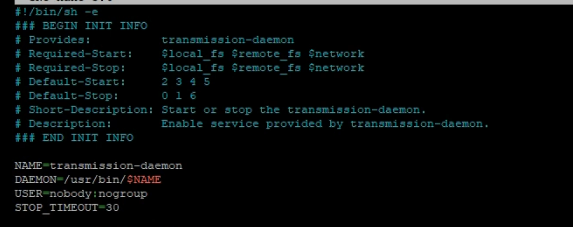
Also:
nano /lib/systemd/system/transmission-daemon.service

User=nobody
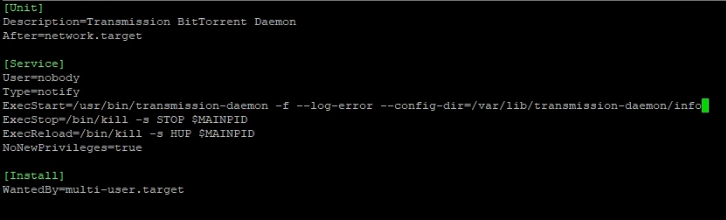
Reload:
systemctl daemon-reload

systemctl status transmission-daemon.service
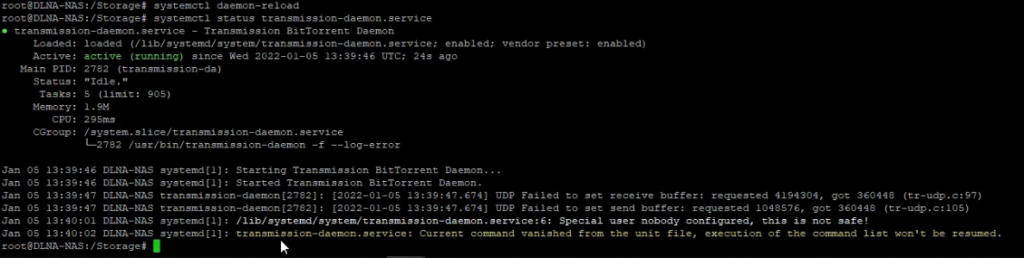 Fix permissions:
chown -R nobody:nogroup /var/lib/transmission-daemon
chown -R nobody:nogroup /etc/transmission-daemon

🖥️ Install Samba (Windows sharing)
sudo apt install samba

nano /etc/samba/smb.conf
 ⚙️ Add:
security = user
map to guest = bad password
 📂 Share:
[DLNA-NAS]
    path = /Storage
    guest ok = yes
    read only = no
    create mask = 0777
    directory mask = 0777
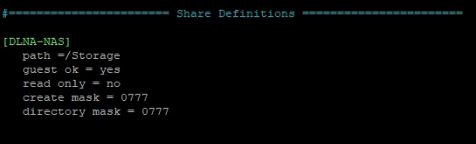 🔄 Restart:
systemctl restart smbd
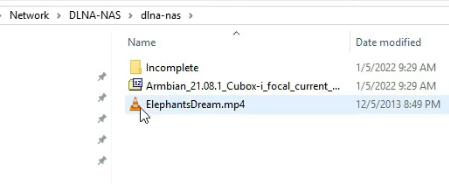
Try to copy file on Samba storage:

🎬 Install MiniDLNA
sudo apt install minidlna

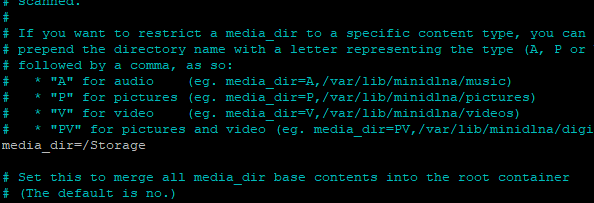
nano /etc/minidlna.conf
 Set:
Set:
media_dir=/Storage
 Restart:
systemctl restart minidlna
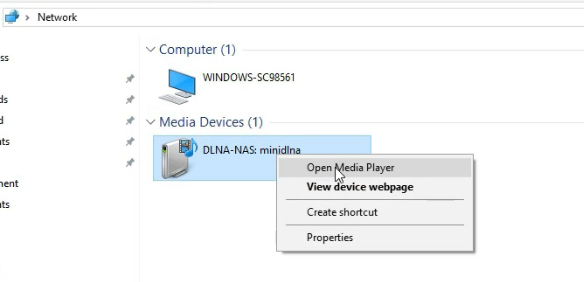
 📺 Now stream to TV / PC 🎉
🌐 Web server (lighttpd)
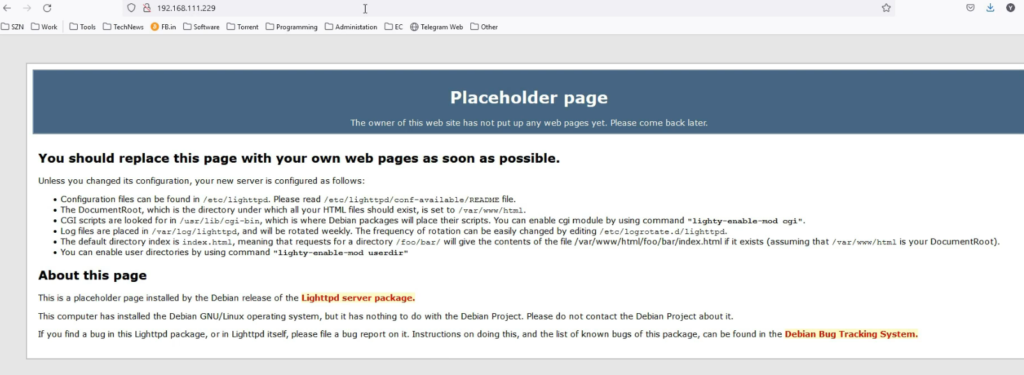
sudo apt install lighttpd
 Check:
 🧹 Clean default page:
cd /var/www/html
rm *

🐍 Install Python web control
sudo apt install python3 python3-pip

pip install bottle
 Create file:
nano poweroff.py

import os
from bottle import route, run

@route('/')
def index(name):
    if name == "power":
        os.system("sudo shutdown -h now")

run(host='0.0.0.0', port=8080)
🔄 Autostart script
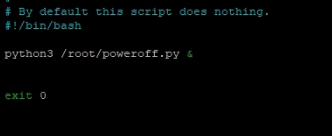
nano /etc/rc.local
 Add:
Add:
python3 /root/poweroff.py &
 Reboot:
sudo reboot
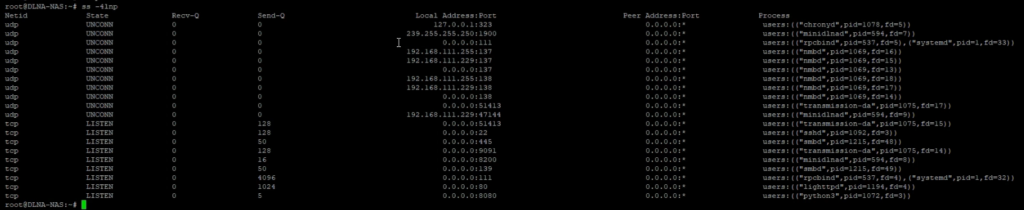
 Check:
ss -4nlp
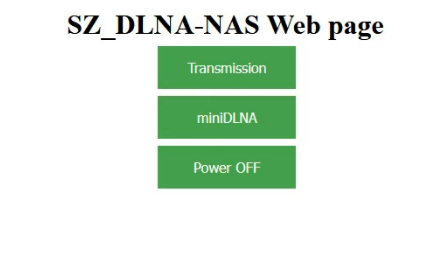
🧾 Simple NAS web UI
nano /var/www/html/index.html
Add HTML 👇
<!DOCTYPE html>
<html>
<head>
<style>
.container { position: relative; }
.button {
  background-color: #4CAF50;
  border: none;
  color: white;
  padding: 15px 32px;
  text-align: center;
  font-size: 16px;
  margin: 4px;
  cursor: pointer;
  width:100%;
}
.center {
  position: absolute;
  top: 50%;
  left: 50%;
  transform: translate(-50%, -50%);
}
.button2 {background-color: #008CBA;}
</style>
</head>
<body>

<h1 style="text-align:center;">SZ_DLNA-NAS Web page</h1>

<div class="center">
  <button class="button button2" onclick="window.location.href=':9091'">Transmission</button>
  <br>
  <button class="button button2" onclick="window.location.href=':8200'">miniDLNA</button>
</div>

</body>
</html>
✅ Final result
🎉 That’s it!
💪 I’ve been using this NAS for ~6 months:
- 📥 Downloading torrents
- 🎬 Streaming series locally
- ⚡ Works stable and fast
💡 Cheap, simple, and реально useful DIY project 😎