📧 Send MikroTik Log Files to Email Automatically
This guide shows you how to send log files from your MikroTik router to your email daily.
🎥 Video Manual
📝 Text Manual
1. Check for Log File
- Open Winbox.
- Go to the Files section.
- Ensure the file
log.0.txtexists.
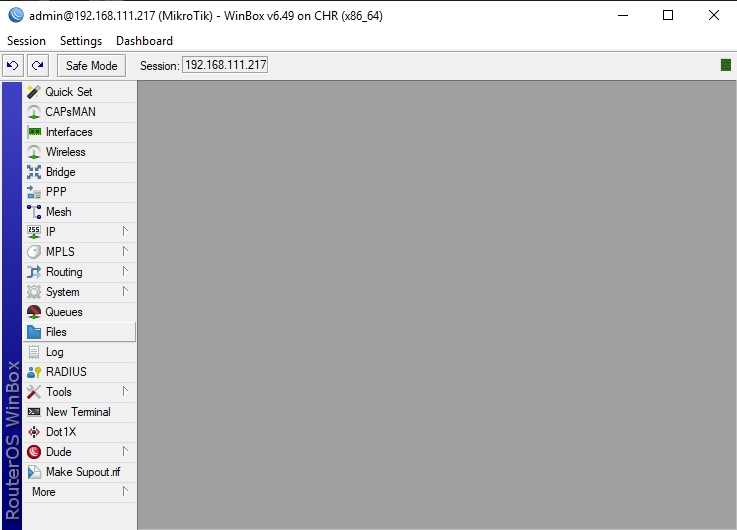
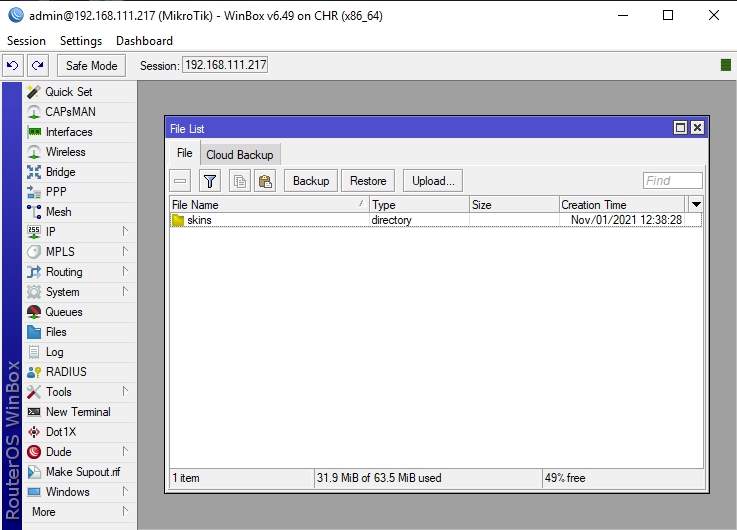
If the file doesn't exist, continue to the next step to enable disk logging.
2. Enable Logging to Disk
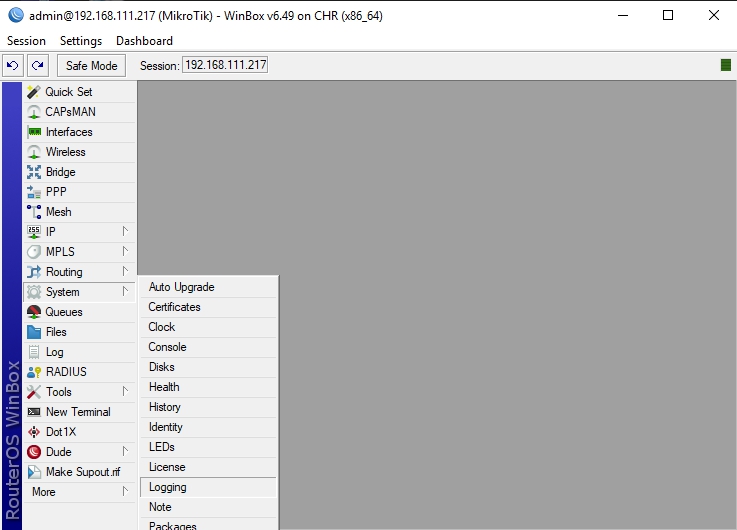
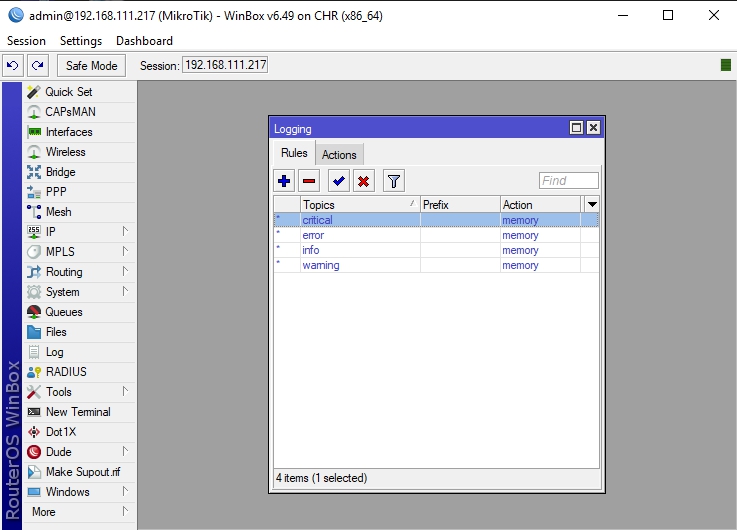
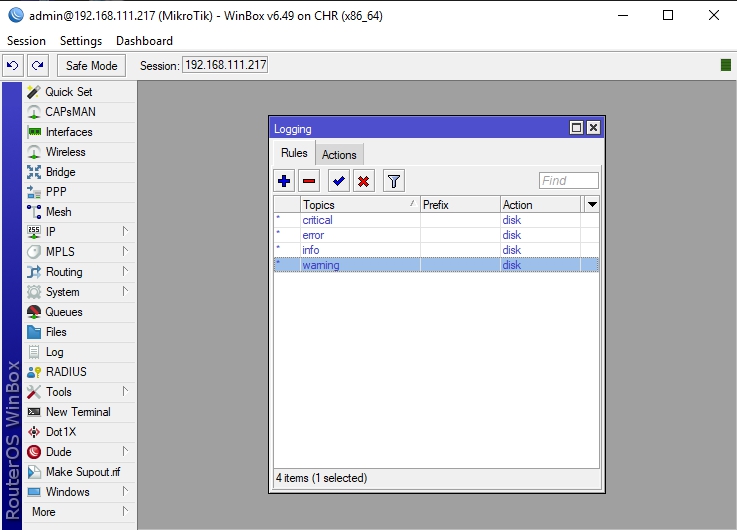
- Go to System > Logging.
- Find the rows where Action is set to
memory. - Change those Action values to
disk.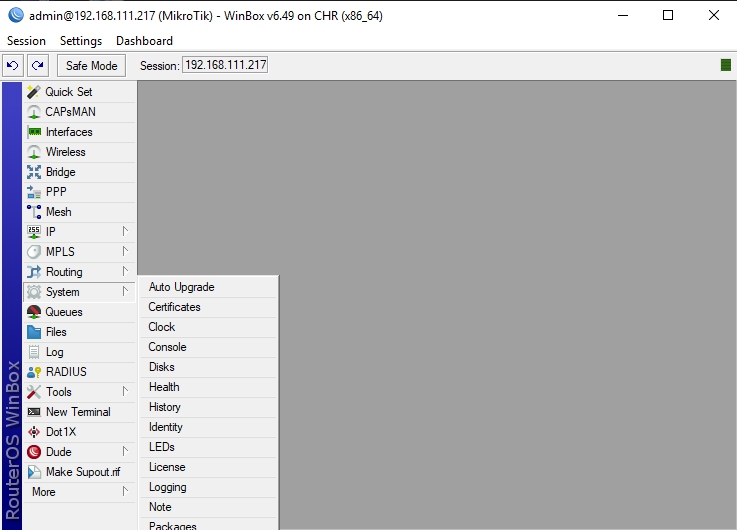
3. Create Script to Email Log File
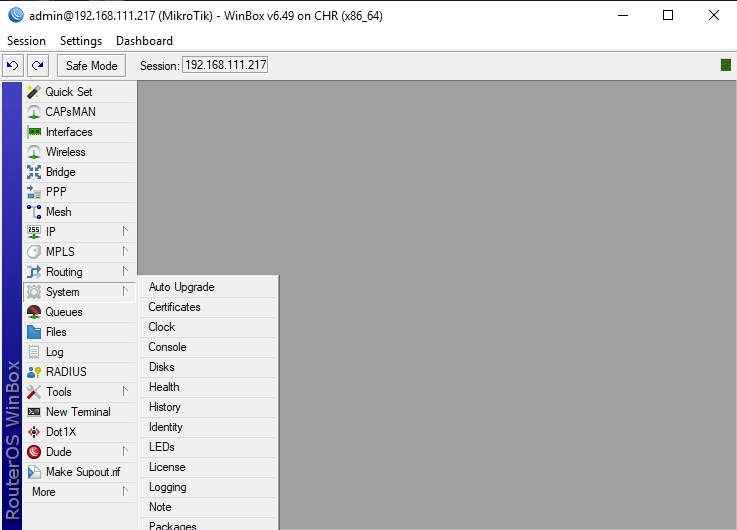
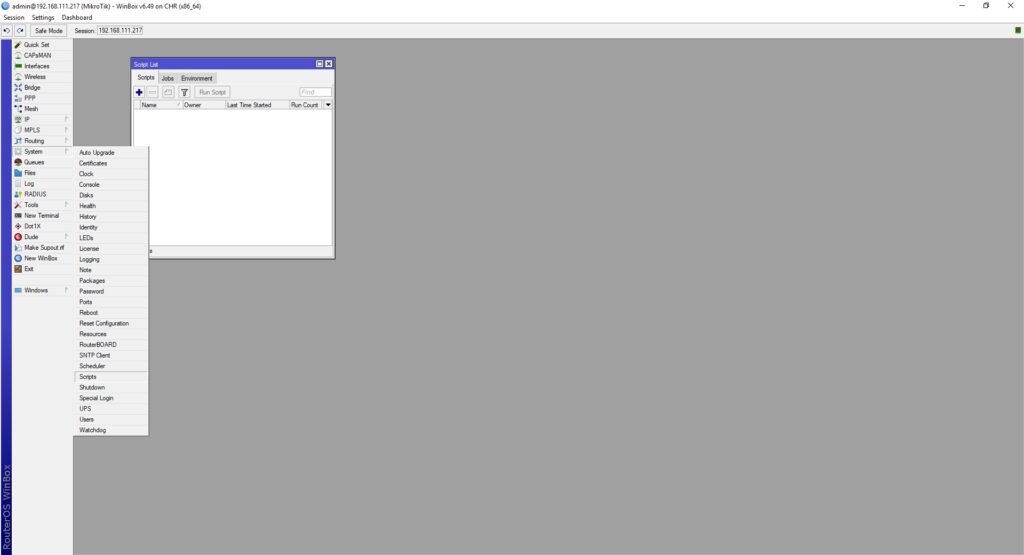
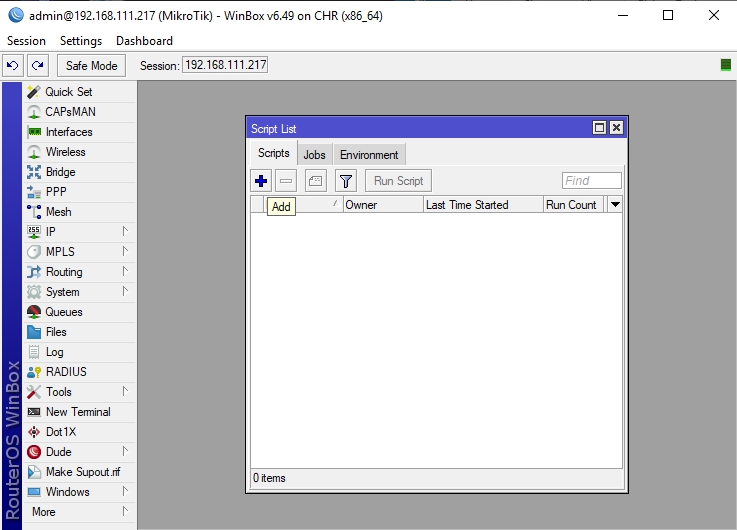
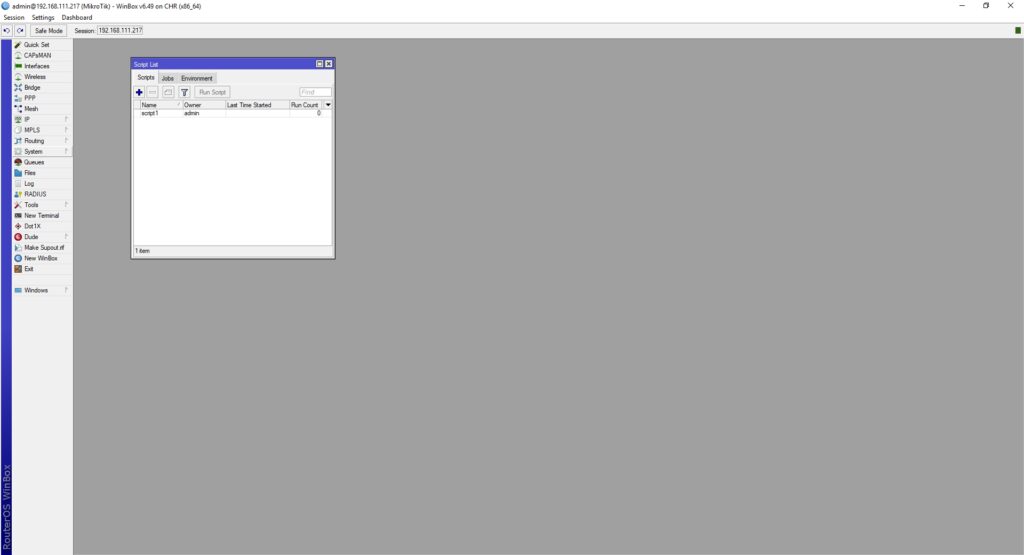
- Go to System > Scripts.
- Click the Add button.
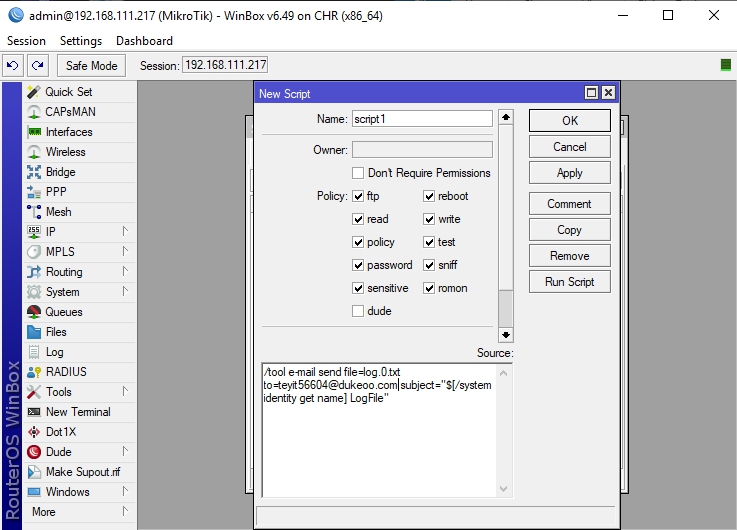
- Fill in the script details.
- Click OK.
Name: SendLogs
Source:
/tool e-mail send file=log.0.txt to=your@email.com subject="$[/system identity get name] LogFile"
4. Schedule the Script
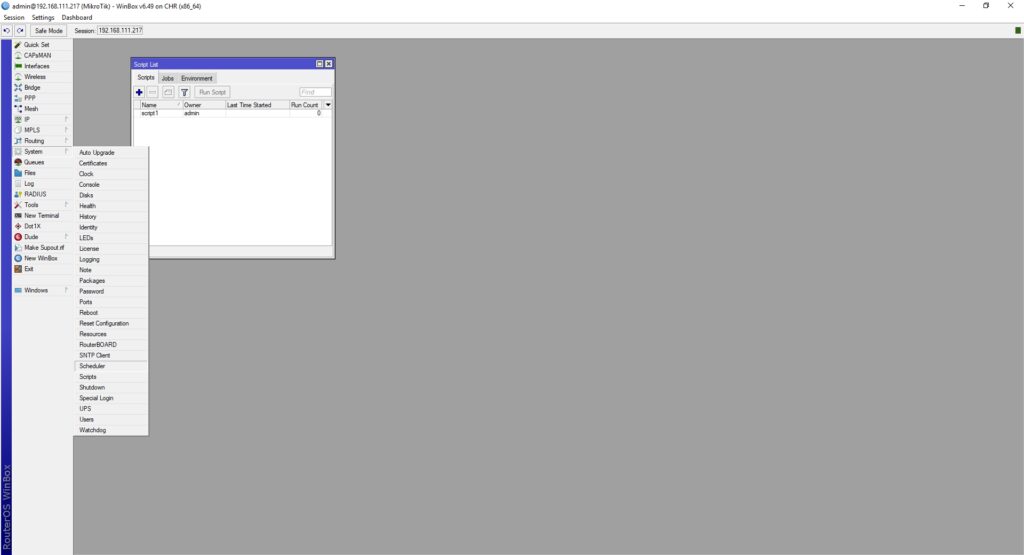
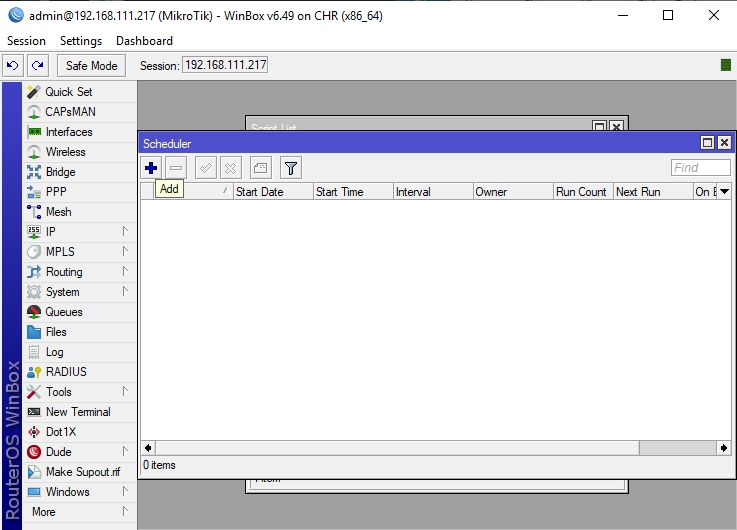
- Go to System > Scheduler.
- Click the Add button.
- Fill in the schedule details:
- Name:
DailyLogEmail - Start Date: [Choose today’s date]
- Start Time: [Choose preferred time]
- Interval:
1d 00:00:00(runs every 24 hours) - On Event:
- Click OK.
/system script run SendLogs
✅ Done!
Your router will now send the log.0.txt file to your email every day. The first email will arrive after the script runs for the first time.