How to Create a Password for MikroTik Email Client Using Google 2-Factor Authentication
To send emails from your MikroTik router via Gmail's SMTP server, the recommended approach is to use an App Password. This method is especially important when 2-Step Verification is enabled on your Google account.
🎥 Video Tutorial
📌 Steps to Generate an App Password for MikroTik
-
Go to the Google Account Page
- Navigate to: https://myaccount.google.com
- Navigate to: https://myaccount.google.com
-
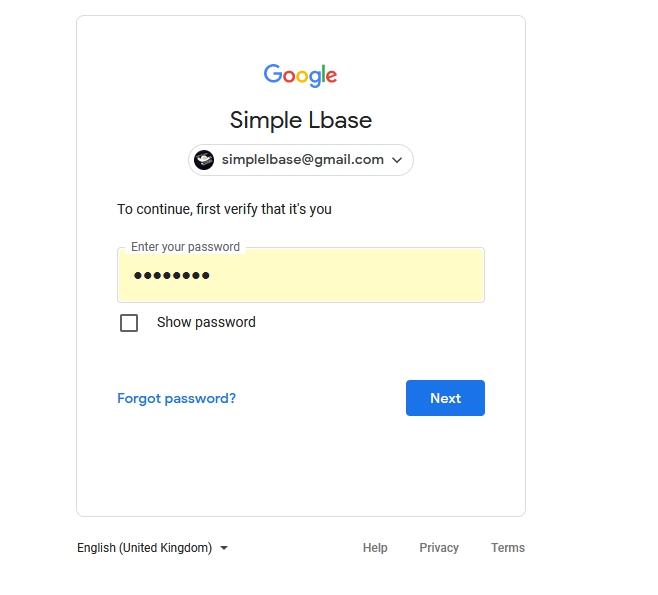
Sign in to Your Google Account
- Enter your credentials to log in.
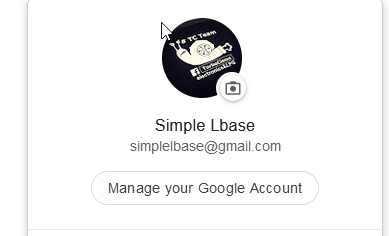
- Enter your credentials to log in.
-
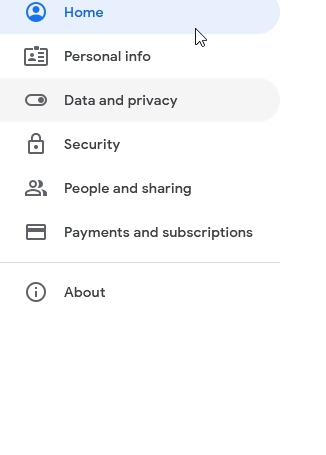
Access Security Settings
- Click on "Manage your Google Account"
- Go to the "Security" section in the sidebar.
-
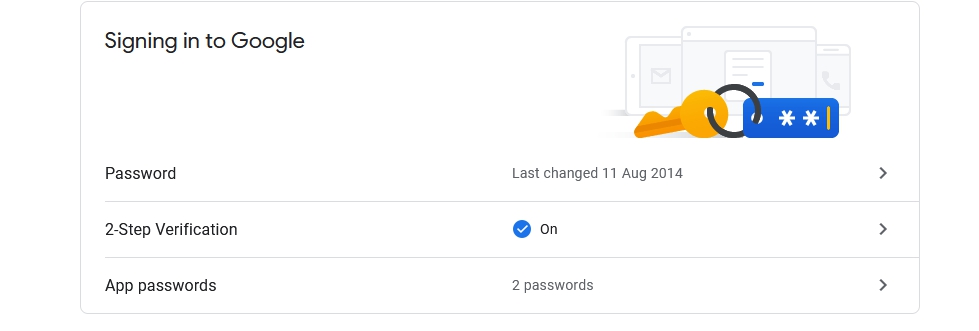
Locate App Passwords
- Scroll down to the "Signing in to Google" section.
- Click on "App passwords"
- You may be prompted to verify your identity again.
-
Generate a New App Password
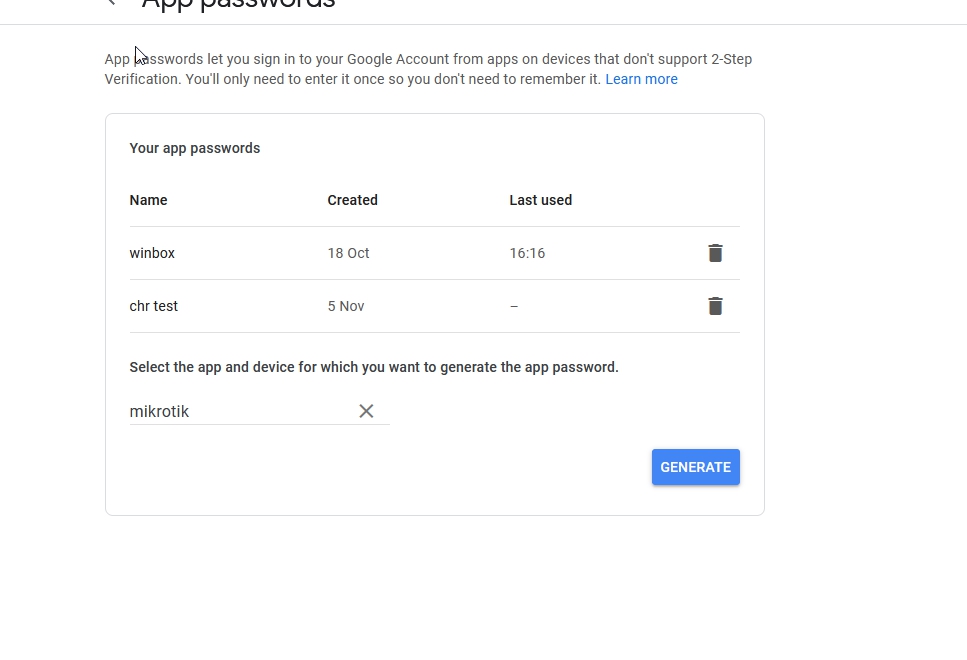
- Click "Select app" and choose "Other (Custom name)"
- Name it something like
MikroTik Email Clientand press "Generate"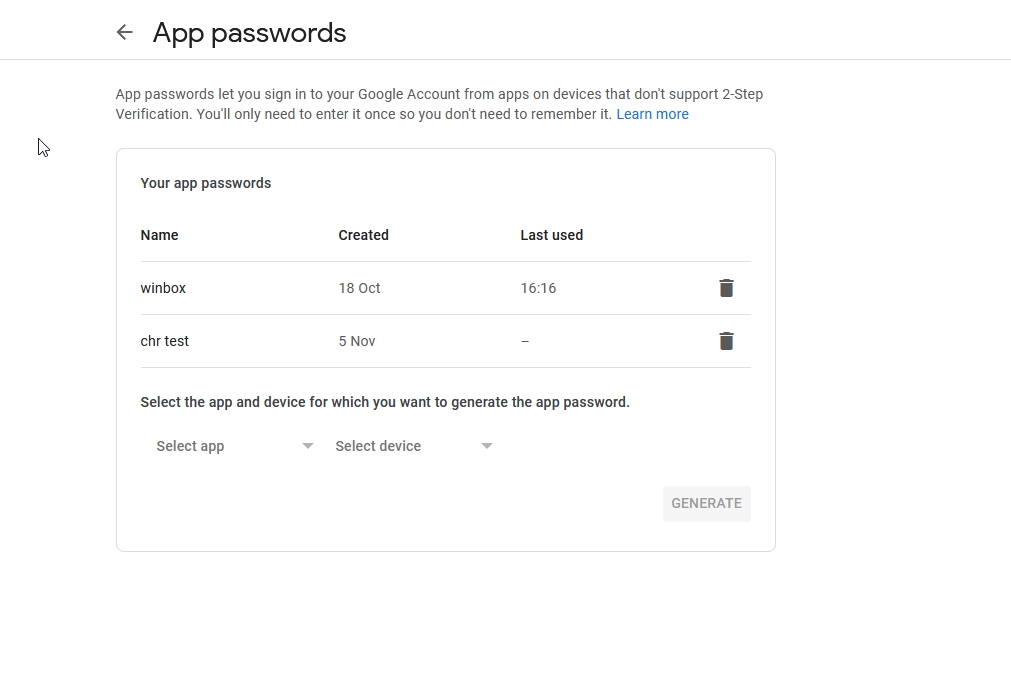
-
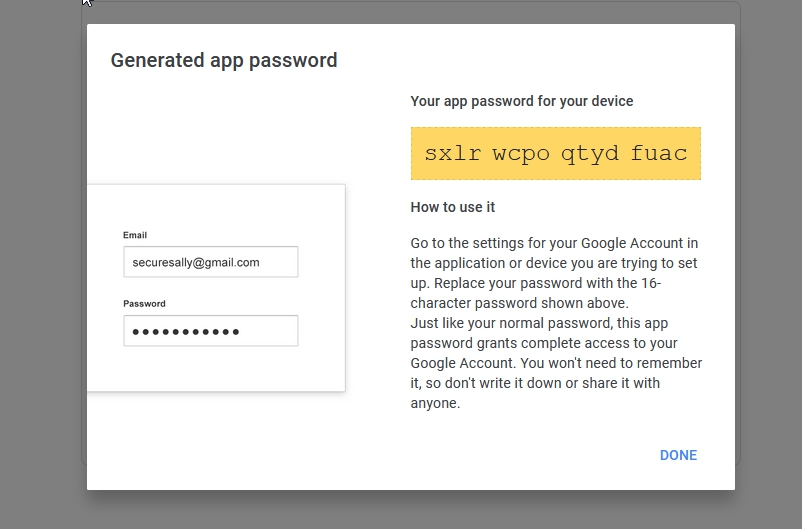
Copy the Generated Password
- A 16-character password will be displayed.
- Copy this password.
✅ Use the Password in MikroTik
Use this 16-character app password as the SMTP password in your MikroTik email configuration. Do not use your normal Google account password.
⚠️ Note: App passwords are only available if 2-Step Verification is enabled on your Google account.